My KPOP Shop Controls & UI
Where every button lives—Settings codes, shelves, register, thieves, packs, and staff menus.
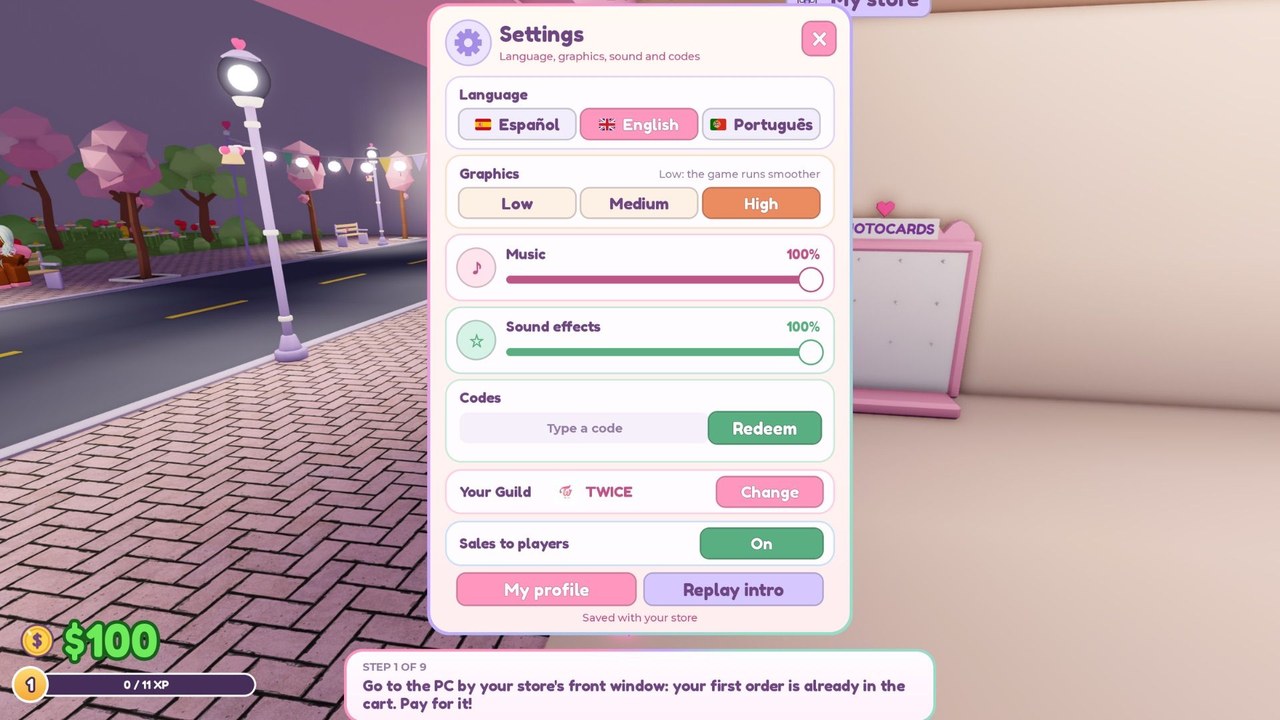
Knowing the My KPOP Shop interface is the difference between a calm register and a chaotic lobby. This controls guide maps the menus you use every session: Settings for codes, shelf restock, the register, thief chase prompts, photocard packs, hire panels, décor tools, and the co-op invite flow. It is written for PC keyboard/mouse and mobile touch on Roblox, because both platforms share the same shop systems even when button placement shifts slightly.
If you are brand new, skim Getting Started first, then keep this page open while you learn muscle memory. Pair it with Restock Shelves and How to Catch Thieves once you can find those actions without hunting the HUD.
Core loop actions
Every profitable minute cycles through the same verbs:
- Restock empty or low shelves with albums, lightsticks, packs, and other merch.
- Serve fans at the register so queues do not stall earnings.
- Catch thieves before displays empty and sales drop.
- Open packs or decorate when the floor is stable.
- Hire a restocker, cashier, or guard when cash allows so you are not doing every job alone.
The UI surfaces each verb as a proximity prompt, menu button, or world interaction. Walk close to shelves, the register counter, pack stations, or staff boards until the prompt appears, then confirm with click / tap / the default Roblox interact key (often E on PC).
Settings menu and codes
Open Settings from the on-screen menu cluster. Inside Settings you will find the code redeem box used for KPOPSHOP, 250LIKES, and MONEYPLEASE. Paste carefully—codes are case-sensitive and do not work in chat. Full redeem steps and timing tips live on the Codes Hub.
Also use Settings when you need audio, graphics, or other Roblox-adjacent toggles that affect readability of the shop UI on low-end devices. Lower clutter helps you spot thieves and empty shelves faster.
Shelves and restock prompts
Approach a shelf display to see restock or refill options. Empty shelves stop sales even if you have cash in the till, so treat restock prompts as high priority during busy windows and during any active 2x Money buff. Detailed stocking order and product priority live in Restock Shelves and the Product Priority tier list.
On mobile, stand closer than you think you need—touch prompts can be picky if you are mid-sprint. On PC, face the shelf squarely before pressing interact so you do not accidentally open a neighboring décor tool.
Register and serving fans
The register is where fans pay. Stand at the counter, accept the serve / checkout prompt, and clear the line. Long queues mean lost sales and frustrated “super fans” waiting on special requests. If you hire a cashier, that NPC covers much of this loop so you can restock or chase thieves instead. See How to Hire Staff for timing.
Thieves and chase interactions
Thieves look like customers until they start stealing. When the game flags a theft, follow the chase / catch prompt and tag the thief before they leave with merch. Missing catches empties shelves and forces another restock cycle. A guard hire reduces how often you must drop everything—details in Catch Thieves.
Photocard packs and binder UI
Pack opening usually sits on a dedicated counter or UI panel. Open packs when the shop is stable, not while the register is overflowing. Binder completion screens show collection progress; use them to decide whether the next cash dump goes into packs or into staff. Full pack strategy: Photocard Packs & Binder.
Hire, décor, and co-op menus
- Hire board / staff menu — purchase restocker, cashier, or guard when you can afford the wage and need the coverage.
- Décor / expand tools — place furniture and apply group themes after levels unlock them (Decorate & Group Themes).
- Co-op invite — bring a friend into your shop so they can share jobs and stack the +10% earnings per friend bonus (Co-op & Friends).
Platform tips
PC: bind or remember the interact key; use mouse look to scan shelves and exits for thieves; keep Settings one click away for codes at session start.
Mobile: enlarge UI scale in Roblox settings if prompts feel tiny; avoid walking while tapping restock; claim daily rewards before you start multitasking.
Console: use the highlighted interact button shown in the Roblox prompt; slow your camera when scanning for thieves in crowded lobbies.
First-session control checklist
- Join, claim daily rewards, open Settings, redeem codes.
- Find shelves → restock until displays look full.
- Stand at the register and clear at least one short queue.
- Practice one thief catch so the prompt feels familiar.
- Open one photocard pack without abandoning the floor for long.
- Open the hire menu and note prices even if you wait to buy.
Mastering controls will not replace good stocking priorities, but it removes the dead seconds that kill early shops. When the UI feels automatic, move into Make Money and Level Up Unlocks to turn speed into lasting upgrades.
Frequently Asked Questions
Quick answers for My KPOP Shop players.
Where do I redeem codes in the UI?
Open the Settings menu and paste into the code box. Codes do not work in chat.
What is the main interact control on PC?
Use the on-screen proximity prompt or the default Roblox interact key (often E) while facing shelves, the register, or other stations.
Why can’t I see a restock prompt on mobile?
Stand closer, stop sprinting, and face the shelf directly. Tiny UI scale can also hide prompts—raise it in Roblox settings.
Should I open packs while the register is busy?
No. Clear the queue or hire a cashier first, then open packs during a calm window.
Which guide should I read after learning controls?
Restock Shelves and Getting Started for the first hour, then Make Money once the basic prompts feel automatic.